
How to share a calendar with your partner
Step by step, how to share a calendar with your partner in Google Calendar, Apple Calendar or Outlook, which suits couples best, and what to put on it.
The Dolceora team5 min read
“Wait, you’re out tonight?” If that question comes up more than you’d like, a shared calendar fixes most of it. You don’t need a new app to start: Google Calendar, Apple Calendar and Outlook can all share a calendar with one other person in a couple of minutes.
This guide covers how to do it in each, which one suits a couple where one of you is on iPhone and the other on Android, and the habits that make a shared calendar work rather than go stale by February.
First, decide what goes on it
Before you share anything, agree on what the shared calendar is for. A calendar with too little on it gets ignored; one with every work meeting on it is noise. Most couples do well with:
- Plans you’re both part of: dinners with friends, weddings, the weekend away, the dentist you’re both booked in for.
- Plans that affect the other person: the late shift, the work trip, the 6 am gym session that means the alarm goes off early.
- Dates you can’t forget: birthdays, your anniversary, the day the rego is due.
Leave out the meetings that don’t change anything at home. The point is to answer “what’s on for us this week?” at a glance.
Option 1: Google Calendar
Google Calendar is the easiest choice if either of you uses Android, because it works on both Android and iPhone.
Rather than sharing your main calendar, make a new one just for the two of you. That keeps your own appointments private and gives your shared plans their own colour.
- On a computer, open Google Calendar. Next to Other calendars, click + and choose Create new calendar. Call it something like “Us”.
- Under My calendars, find the new calendar, click the three dots next to it and choose Settings and sharing.
- Under Shared with, click Add people and groups and enter your partner’s email address.
- Choose a permission that includes Make changes, so you can both add and edit plans.
- Click Send. Your partner gets an email with a link to add the calendar.
Google’s help covers sharing from a computer, so start there; once it’s shared, you’ll both see the calendar on your phones.
Option 2: Apple Calendar (iCloud)
If you’re both on iPhone, iCloud calendar sharing is built in. You’ll each need an Apple Account, and the calendar has to be an iCloud calendar rather than one from Google or a work account.
- In the Calendar app, tap Calendars at the bottom, then Add Calendar to make a new one for the two of you.
- Tap the info button (the “i”) next to the new calendar.
- Tap Add Person, enter your partner’s email address, then tap Add.
- Your partner gets an invitation to accept. Editing is usually on by default; to check, tap their name in the calendar’s settings and make sure Allow Editing is on.
If one of you is on Android, Apple’s calendar sharing gets awkward. Google Calendar or Outlook is the simpler choice for a mixed couple.
Option 3: Outlook
Outlook makes sense if one of you already lives in it. In Outlook on the web:
- Open Calendar.
- Select Share on the toolbar, then choose the calendar you want to share.
- Enter your partner’s name or email address.
- Choose Can edit so they can add plans too, then select Share.
One catch: work accounts often restrict sharing with people outside the organisation, and your partner probably doesn’t want your work calendar anyway. Use a personal Outlook.com calendar for the two of you.
Which one should you choose?
| If… | Choose |
|---|---|
| One of you is on Android | Google Calendar |
| You’re both on iPhone | Apple Calendar (iCloud) or Google Calendar |
| One of you already runs their life in Outlook | Outlook |
| You want more than a calendar | An app made for couples |
Whichever you choose, make a separate calendar for the two of you instead of sharing your main one.
Where a shared calendar falls short for couples
General-purpose calendars are built for teams and families, and a couple is a slightly different thing. After a few weeks, most couples run into the same problems:
- You can’t tell whose plan it is. Every event on the shared calendar looks the same, so you end up typing “T:” or “M:” at the start of everything.
- Your own plans are somewhere else. Your partner can see the shared calendar, but not that you’re at the physio on Monday unless you remember to copy it across.
- The rest of your shared life doesn’t fit. The date ideas you keep meaning to try, the to-do list, the trip you’re planning: none of it has a home in a calendar.
That’s why we built Dolceora. Every plan is yours, your partner’s or both of yours, and shows in that colour on both your calendars, so whose plan it is never needs asking.
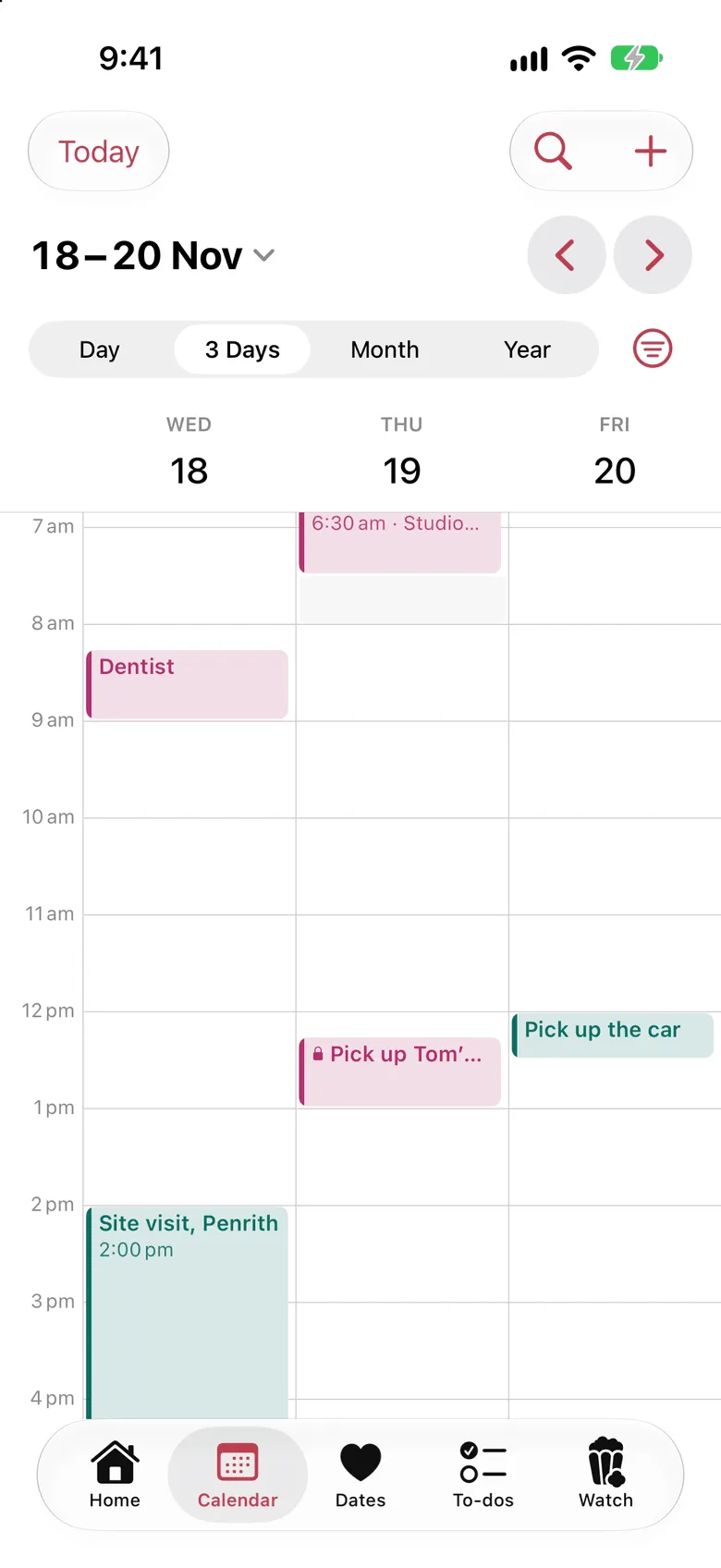
To be upfront: Dolceora doesn’t sync with Google, Apple or Outlook. It’s its own calendar for your life together, so it suits couples who are happy to keep shared plans in one place and leave work calendars where they are.
Habits that keep a shared calendar working
The app matters less than the habits. These are the ones that make the difference:
- Add it the moment you agree to it. “Yes, let’s go to Sophie’s on Saturday” goes on the calendar before the conversation ends.
- Look at the week together once a week. Ten minutes on a Sunday catches the clashes before they happen. We wrote a whole guide to the weekly check-in.
- Put repeating things in once. Footy training, bin night and the monthly book club are all one repeating event, not something to remember each week.
- Keep surprises off the shared calendar. Put the present shopping on your own calendar instead. (In Dolceora, the Hide from switch does this for you: your partner just sees that you’re busy.)
- Don’t make it one person’s job. If only one of you ever adds anything, it becomes their calendar, not yours.
A shared calendar won’t stop every “wait, you’re out tonight?”. But it turns most of them into “oh right, it’s on the calendar”.